Hands-On Review: Keynote 1.0
By Bill Fox
February 18, 2003 (Updated 2/19/03 in italics, updated 2/27)
Apple Computer. Price: $99
Features: Easy to use, attractive themes, great graphics, 3D transitions, inexpensive.
Fix Its: PowerPoint file export intermittant (This appears fixed in the 1.0.1 Update), PowerPoint image import defects.
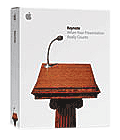
We make numerous slide presentations each year. In recent years all of them have been constructed with the Mac version of Microsoft's PowerPoint. In fact, the nearly universal use of PowerPoint for presentations has been the sole ball-and-chain that has tied us inextricably to the Dark Side's software. But that ball-and-chain appeared to be broken when Apple CEO Steve Jobs introduced Keynote 1.0 at Macworld Expo 2003 in San Francisco. Keynote is Apple's new presentation software that is, in Steve Jobs words, for "when your presentation really counts." These encouraging words are also printed on the retail box.
While the Mac OS X version of Microsoft PowerPoint is excellent, much better in our opinion than the Windows version, the world is better off if there is an alternative that is equivalent or better. Keynote appeared to be that alternative, at least in part because it imports and exports files in PowerPoint format.
We picked up a copy of Keynote 1.0 at an Apple Store on the weekend following Macworld. Keynote comes on a CD. The box also contains a modest printed User Guide booklet and a Quick Start Guide as a folded pamphlet. The CD also contains PDF files of the two guides.
Keynote installed easily and quickly on our 800 MHz PowerBook G4's hard drive. We also copied over the two guide PDF files. Within a few minutes we were using Keynote with the assistance of the Quick Start Guide and a few peeks in the User Guide. Our high familiarity with PowerPoint actually slowed us down a bit in getting the hang of Keynote because, while Keynote's looks are somewhat familiar, the two user interfaces are fundamentally different. Keynote's interface is "think easy" while PowerPoint's is "think intricate." Once we got this, we quickly whizzed along the learning curve. We believe that anybody new to making computer slide presentations will find Keynote much easier to master than PowerPoint.
After learning Keynote's "ropes" we imported our 10 most frequently used PowerPoint presentations into Keynote. This is done automatically by simply opening an existing PowerPoint presentation from the File menu. Keynote did an excellent but not perfect job. We had several graphs that lost an axis legend, a few graph images that were noticeably re-sized (i.e. scrunched a bit in the horizontal plane) and a couple of images that lost their ability to be re-sized or rotated in Keynote. But by and large the presentations were imported intact. It is possible that the problems we encountered actually resulted from unorthodox tweaks while in PowerPoint. There were no problems at all with text or backgrounds.
Keynote comes with a dozen carefully-designed themes, i.e. coordinated collections of backgrounds, designs, fonts, and colors. However, we have several custom-designed, ocean-related PowerPoint master slides or "themes" among our PowerPoint presentations that we are particularly fond of. By simply selecting "Save Theme" from the File menu while viewing the imported presentation, we were able to save our custom PowerPoint master slides perfectly as new Keynote themes. For some reason, all of them were saved in 720x540 pixels resolution rather than 800x600. Maybe 720x540 is the actual size of an 800x600 PowerPoint. Anyway, they project fine at 800x600 resolution, the resolution of most "older" projectors, and 1024x768.
We made a couple of our own custom themes in Keynote. It is important to be certain that you are working on the actual master slides and not just the first slide in a file. Once you are done, just select Save Theme in the File menu. The theme needs to be named and then saved. A thumbnail of the new theme shows up in Keynote's theme tray.
We had a special 15-minute presentation to make so we decided to make it with Keynote and to use our 800 MHz PowerBook G4 Titanium to deliver it in a "trial by fire." After selecting one of our imported custom themes, we got to work. Half the slides were text slides, i.e. a title slide and several bullet slides, and the other half were of imported images, i.e. either TIFF or JPEG files of graphs or photos.
Keynote did a beautiful job, showing very sharp text and images. The drop shadows on the images contained on the slides looked really great. Graphs appeared to float above the slide in 3D. We chose the Cube 3D transition, rotating bottom-up between sets of slides and right-left within sets, and the Mosaic Small 3D transition to the end slide. The 3D transitions look terrific.
 We even made a "Made with Keynote" label to use on our first and last slide in case members of the audience were curious about the presentation's quality and cool transitions. We hope Apple doesn't mind.
Keynote files can be exported in QuickTime movie, PDF and PowerPoint formats. We easily exported the Keynote file as a QuickTime movie file and PDF file as backups. The QuickTime movie plays the presentation exactly like the Keynote application's slide show except in the QuickTime Player window and not as sharply. The PDF looks great in Acrobat Reader or Apple Preview but, of course, without the 3D transitions.
Exporting the presentation as a PowerPoint file gave us some difficulty. It would appear to be saved to disk but no file was there. We tried several times without success, tried saving other files, ones that had been imported, also without success and closed and relaunched Keynote which also left us without success. We reinstalled Keynote but still had no success in saving our Keynote presentation as a PowerPoint file. We noted that it seemed to start saving but not complete the process, at least in comparison with the other export options. [Note 2/27/03 -- This problem appears to be fixed in the 1.0.1 Update.--Ed]
The lack of a PowerPoint file caused us a lot of worry because we weren't certain that we could use our own PowerBook at the conference and might have to submit a CD to play in PowerPoint on a PC notebook. We couldn't be certain that the PC would have either QuickTime or Adobe Acrobat either. Then, after some final tweaks to the presentation, we tried one last time and magically it exported a PowerPoint file. We tried to repeat it but no success. This is a bad bug in Keynote 1.0 but, unfortunately for us, not the worst one.
Equipped with a terrific Keynote presentation discretely touting Apple and Keynote, one that we had run through many times in slide show mode, we were prepared for almost every contingency. We had backup files in PowerPoint, QuickTime and PDF formats on our PowerBook and burned onto a CD as well. It turned out that we could use our PowerBook to make the presentation, one Apple in a 2-day sea of Microsoftians, to an international audience of about 100 scientists and policymakers.
Unfortunately, as prepared as we were, we had not tried out our Keynote presentation with a projector connected to our PowerBook G4. We set up as we normally do for a PowerPoint presentation but clicking the "Play" button on Keynote brought up a huge bogus error message of not enough VRAM on the screen--d'oh!!! Our PowerBook G4 has 32 MB of VRAM. Fortunately, though, numerous Windows users before us had had projector problems, usually a resolution issue requiring a reboot of their notebook or the projector, so when we deftly switched to the QuickTime version already sized to full screen no one really took much note. Disaster was averted.
The presentation went fine in QuickTime with all the cool 3D transitions and other effects. A lot of people asked us afterward about the presentation software and its 3D transitions. We initially thought that the bug that bit us involved the ATI graphics drivers in Mac OS X 10.2.3 on our PowerBook and Keynote but not so according to a number of readers of this review. Apparently, we may not have set up right to present with Keynote, i.e. trying to run like a PowerPoint presentation and not selecting "present on secondary display" in Keynote's preferences. But the lesson we learned (again!) is never, ever trust yourself with 1.0 software for anything that "really counts." Test everything before going in front of an audience.
In summary, we are very impressed with Keynote. Making a stunning presentation is very easy to do. Apple still needs to fix some minor PowerPoint import bugs and the more critical PowerPoint file export bug [Note 2/27/03 -- This problem appears to be fixed in the 1.0.1 Update.--Ed] to make it acceptable for "When your presentation really counts." We eagerly look forward to the next version.
###
Keynote Resources:
Make the Most out of Apple’s innovative technologies and save $300!
. . [Go to Macs Only!'s Daily News]
Click On Images Above!
|
Copyright © 1995-2003 by Bill Fox All rights reserved. Macs Only! Logo by Bob Burdeau MY LAWYER MADE ME POST THIS: 8-/ Apple, Apple Logos, Macintosh, and Mac OS Logos are registered trademarks of Apple Computer, Inc. All other trademarks mentioned belong to their respective owners. |
Saw something? Send a tip or a correction
The archive ran on reader tips. What did you see, where, and do you want the credit? Something wrong on this page? Say so and it gets fixed.