Hands-On Review: PANTONE hueyPRO Colorimeter, a Monitor Calibration Tool for All
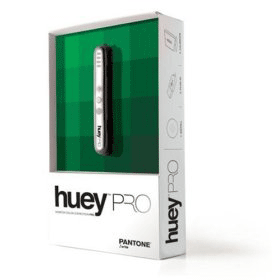 So you have a recent Mac and are managing all of your digital photographs with iPhoto and maybe even digital video with iMovie or iDVD. But are you neglecting one important part of the process, calibrating you monitor, because you think that calibration tools are expensive and only for professionals or that the Displays preference pane is adequate? Well, think again--Pantone makes a great set of colorimeters, the huey and hueyPRO, for just $89 and $129 MSRP with lower "street " prices (e.g. $66 and $102 on Amazon.com).
With a colorimeter to calibrate your monitor, LCD or CRT, your digital photos, videos and even 3D games can look more intense, vibrant, real and consistent over time and under varying light conditions. If you print your digital photos, they will be far more accurate and consistent with what you see on your monitor.
We got a copy of PANTONE's newest and most advanced model, the hueyPRO, and used it for a couple of weeks before writing this review. The reason for this "hands-on" period is to make sure that the device actually does something for the more or less average Mac user, one who deals with their own collection of digital photos and videos but is not a professional.
The difference between the huey and the hueyPRO is largely the hueyPRO's software which is offered by Pantone as a $39.99 upgrade for huey owners. The upgraded software allows multiple monitor calibration, a user-defined white point and gamma setting and an advanced help button.
What you get
In the PANTONE hueyPRO box is the small and light hueyPRO colorimeter (slightly shorter and fatter than a typical ballpoint pen), a desktop cradle for the hueyPRO, a USB extension cord, a 4"x4" micro-chamois cloth, two Klear Screen monitor cleaning packets, a hueyPRO software CD, a PANTONE color fan of 100 top colors, and a quickstart user guide.
Use
The simple steps are: clean your monitor, plug the hueyPRO into an available USB port, place the hueyPRO in its desktop cradle near the monitor facing you, install the software and launch it. The software takes you through a couple of steps to balance your monitor's brightness and contrast. Then, you stick the hueyPRO to your monitor in the place designated by the software. The hueyPRO sticks to your monitor via six tiny suction cups that are kept clean in the cradle. Click Next and in about a minute, the hueyPRO creates a calibrated color profile that you name and save. Finally, the software asks if you want the hueyPRO to adjust the screen for changes in room light--we selected "Yes"-- then you click Quit and return the hueyPRO to its desktop cradle with its LEDs facing you. The preferences allow you to set the time period between room light adjustments--we picked 1 hour-- and number of days between reminders for re-calibration, up to 14--we set it for 1 day during the review period to see how it worked. They also allow you to select a white point (color temperature) setting and a gamma setting without re-calibrating in the PRO edition.
The software has a menu bar icon that allows you to turn off room light compensation (if turned on), start the software to re-calibrate your monitor, to immediately adjust for room light changes or to open the hueyPRO preference pane.
We used the hueyPRO with our 30" Apple Cinema Display attached to a 15" 2.4GHz MacBook Pro (LED) and found the calibration procedure to be as simple as one could make it. The hueyPRO automatically does virtually everything. The hueyPRO's calibration of our 30" Apple Cinema Display was significantly different (cooler) than the standard calibration that Apple supplied with the monitor. The light grays look gray without a very slight brown cast and the blues are much more vivid. It could be because our monitor is over two years old and its color has shifted some with age--all the more reason to use a calibration tool.
The automatic adjustment for room light level is also impressive. We never have to fiddle with the monitor from mid-day through night as we did before using the hueyPRO.
Re-calibration is simple. A reminder pops up and simply select Yes. In a couple of minutes you are done.
The only glitch we encountered during the review period was occasionally when we went to re-calibrate our monitor, the hueyPRO software said our hueyPRO was not plugged in despite its room light adjustment LEDs having just blinked for a room light check. To clear this error message, we had to unplug and re-plug the hueyPRO into a USB port on our MacBook Pro, a small annoyance that should be fixed with the next software update.
In Summary
We highly recommend the PANTONE hueyPRO. It is simple to set up and use by the average Mac user. After two weeks hands-on use there is no question in our mind that the hueyPRO has a significant effect on the color fidelity shown by our 30" Apple Cinema Display. The hueyPRO will keep our colors consistent among uses and over time. It is inexpensive at about $100 "street" price and well worth the cost for the prosumer. We think the regular PANTONE huey at under $70 "street" price will work perfectly well for the average consumer. [Bill Fox]
Saw something? Send a tip or a correction
The archive ran on reader tips. What did you see, where, and do you want the credit? Something wrong on this page? Say so and it gets fixed.